




iOS 26 яагаад ийм удаан ажилладаг вэ?

iPhone-оо iOS-ийн шинэ хувилбар руу шинэчлэх нь төхөөрөмжийн ажиллагааг дордуулах биш, харин ч сайжруулсан мэдрэмж төрүүлэх ёстой. Гэсэн хэдий ч iOS 26 суулгасны дараа зарим хэрэглэгчид iPhone нь ер бусын удаан эсвэл хариу өгөхгүй байгааг анзаарч магадгүй юм. Аппликейшнууд нээгдэхэд удаан хугацаа шаардагдаж, хөдөлгөөнт дүрс тасалдаж, гүйлгэх нь жигд бус байж магадгүй бөгөөд гар эсвэл мэдрэгчтэй удирдлага заримдаа сааталтай хариу үйлдэл үзүүлж болзошгүй.
Томоохон iOS шинэчлэлтийн дараа саатал гарах нь таны iPhone техник хангамжийн асуудалтай гэсэн үг биш юм. Шинэ үйлдлийн систем нь нэмэлт суурь процессууд, нийцтэй байдлын асуудлууд, түр зуурын алдаа болон гүйцэтгэлд нөлөөлдөг бусад хүчин зүйлсийг бий болгож болзошгүй юм. Аз болоход, хамгийн түгээмэл шалтгаануудыг хэд хэдэн энгийн алдааг олж засварлах алхмуудаар шийдэж болно.
Энэхүү гарын авлагад бид iOS 26 яагаад ийм удаан ажиллаж байгааг тайлбарлаж, гүйцэтгэлийг сайжруулах хэд хэдэн хурдан аргыг танилцуулж, асуудал нь iOS системийн илүү гүнзгий асуудлуудтай холбоотой үед туслах дэвшилтэт хэрэгслийг харуулах болно.
1. iOS 26 яагаад ийм удаан ажилладаг вэ?
Хэрэв таны iPhone iOS 26 руу шинэчлэсний дараа удааширсан бол дараах нэг буюу хэд хэдэн шалтгаан байж болно.
1.1 Дэвсгэр боловсруулалт
Томоохон шинэчлэлтийн дараа iOS нь файлуудыг индексжүүлэх, зургийг цэгцлэх, өгөгдлийг шинэчлэх, системийн нөөцийг оновчлох зэрэг ажлуудыг арын дэвсгэр дээр үргэлжлүүлэн гүйцэтгэж магадгүй. Эдгээр процессууд нь нэмэлт CPU болон хадгалах нөөцийг түр хугацаанд ашиглаж, таны iPhone-г удаашруулж болзошгүй.
1.2 Хязгаарлагдмал хадгалах зай
Маш бага хэмжээний сул зайтай iPhone үйлдлийн системийн асуудалтай тулгарч магадгүй. iOS нь түр зуурын файлууд, аппликейшны өгөгдөл, системийн процессууд болон бусад үйлдлүүдэд зориулсан зай шаарддаг. Хэрэв таны санах ой бараг дүүрсэн бол шаардлагагүй файлуудыг цэвэрлэх нь тусалж чадна.
1.3 Хуучирсан аппликейшнууд
Зарим аппликейшнуудыг iOS-ийн шинэ хувилбарт бүрэн оновчлоогүй байж магадгүй. Хуучирсан аппликейшн гацах, хөлдөх, хэт их нөөц ашиглах эсвэл мэдэгдэхүйц саатал үүсгэж болзошгүй. App Store-оор дамжуулан аппликейшнуудыг шинэчлэх нь нийцтэй байдлын асуудлыг шийдэж чадна.
1.4 iOS алдаанууд
Шинэ програм хангамжийн хувилбарууд нь заримдаа тодорхой iPhone загварууд эсвэл функцуудад нөлөөлдөг алдаануудыг агуулж болно. Гүйцэтгэлийн асуудалд мэдрэгчтэй хариу үйлдэл удаашрах, хөдөлгөөнт дүрс гацах, апп гацах эсвэл түр зуурын хөлдөлт орж болно. Ирээдүйн iOS шинэчлэлтүүд эдгээр асуудлыг шийдэж магадгүй юм.
1.5 Хуучин Тоног Төхөөрөмж
iOS 26 нь таны iPhone-г дэмжиж болох ч шинэ програм хангамж нь төхөөрөмжид өөр өөр шаардлага тавьж болзошгүй. Хуучин iPhone-ууд нь боловсруулах хүчин чадал эсвэл санах ой багатай байж магадгүй бөгөөд энэ нь зарим хөдөлгөөнт дүрс болон нөөц их шаарддаг функцуудыг удаашруулж болзошгүй юм.
1.6 Батерейны эрүүл мэнд муу байна
Батерейны хуучирсан байдал нь гүйцэтгэлийн асуудалд нөлөөлж болзошгүй юм. Батерейны эрүүл мэнд мэдэгдэхүйц буурсан үед iOS нь гэнэтийн унтрах эрсдэлийг бууруулахын тулд тодорхой нөхцөл байдалд гүйцэтгэлийн менежментийг ашиглаж болно.
1.7 Нөөц их шаарддаг аппликейшнууд
Зарим аппликейшнууд, ялангуяа видео засварлах, тоглоом тоглох, зураг боловсруулах эсвэл бусад хүнд хэцүү үйл ажиллагаатай холбоотой аппликейшнууд нь системийн нөөцийг ихээхэн хэмжээгээр ашиглаж болзошгүй. Хэрэв тодорхой аппликейшнийг ашиглах үед голчлон саатал гарвал тухайн аппликейшн нь асуудлын эх үүсвэр байж болно.
2. iOS 26-г хэрхэн бага хоцрогдолтой болгох вэ?
Дэвшилтэт засварын аргуудыг авч үзэхээсээ өмнө эдгээр энгийн шийдлүүдийг туршиж үзээрэй.
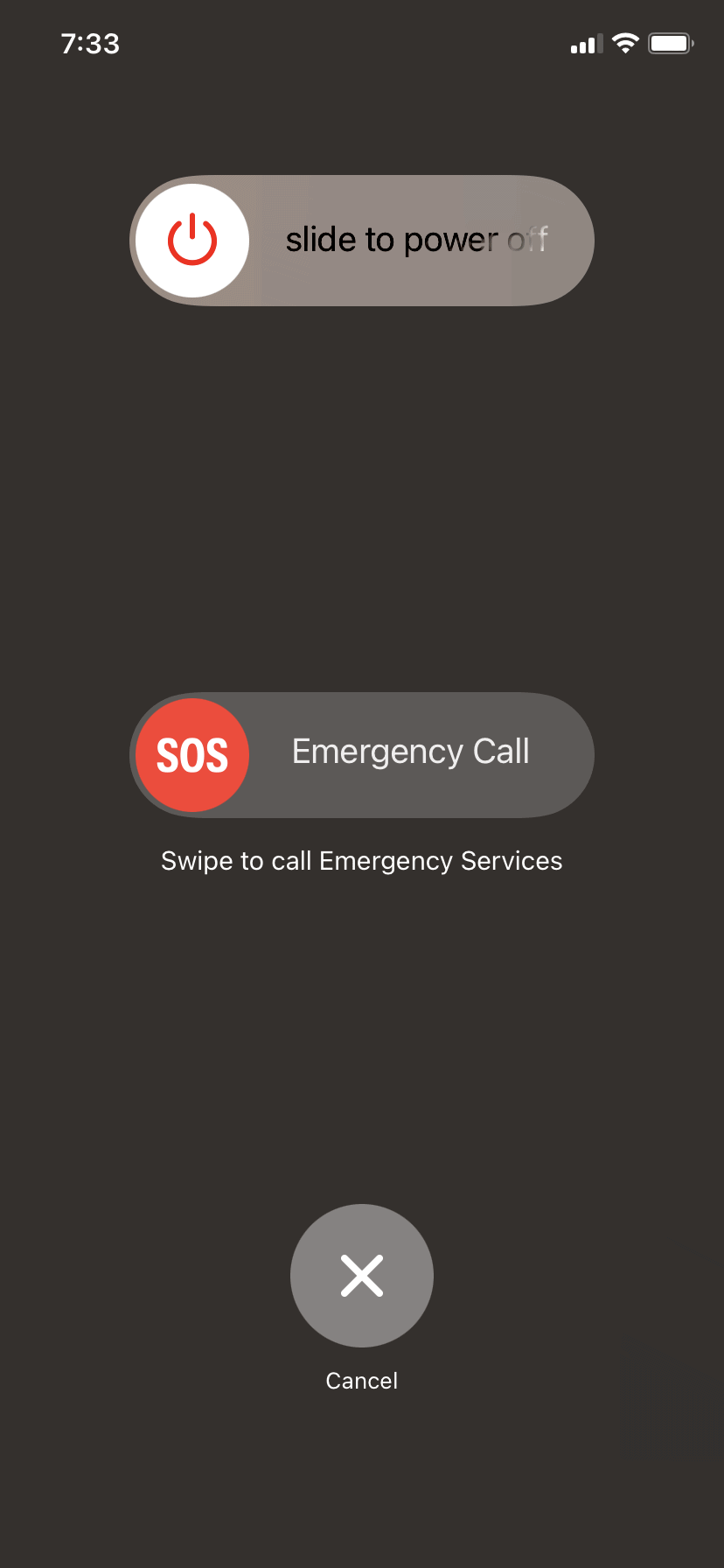
2.1 iPhone-оо дахин эхлүүлнэ үү
iPhone утсаа дахин асаах нь түр зуурын алдааг арилгаж, системийн нөөцийг сэргээх боломжтой. Төхөөрөмжийг унтраагаад хэдэн секунд хүлээгээд буцааж асаана уу.
2.2 Чөлөөт хадгалах сан
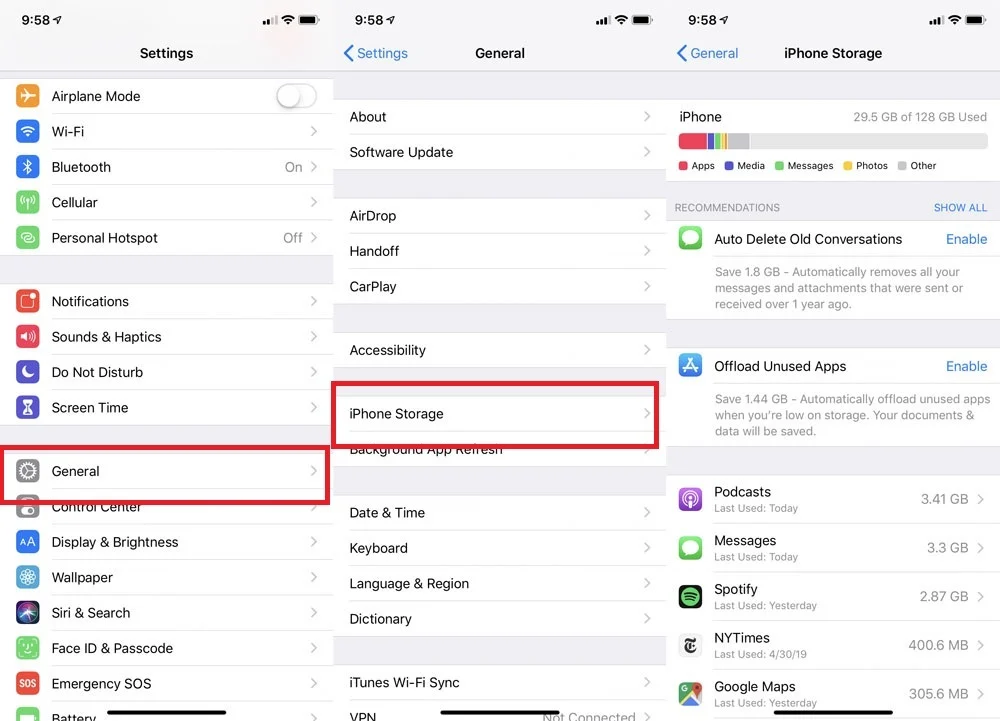
руу оч
Тохиргоо > Ерөнхий > iPhone хадгалах
юу зай эзэлж байгааг харахын тулд. Ашиглагдаагүй аппликейшнууд, их хэмжээний татан авалтууд, шаардлагагүй видеонууд болон бусад шаардлагагүй файлуудыг устгана уу.
2.3 Аппликейшнуудаа шинэчлэх
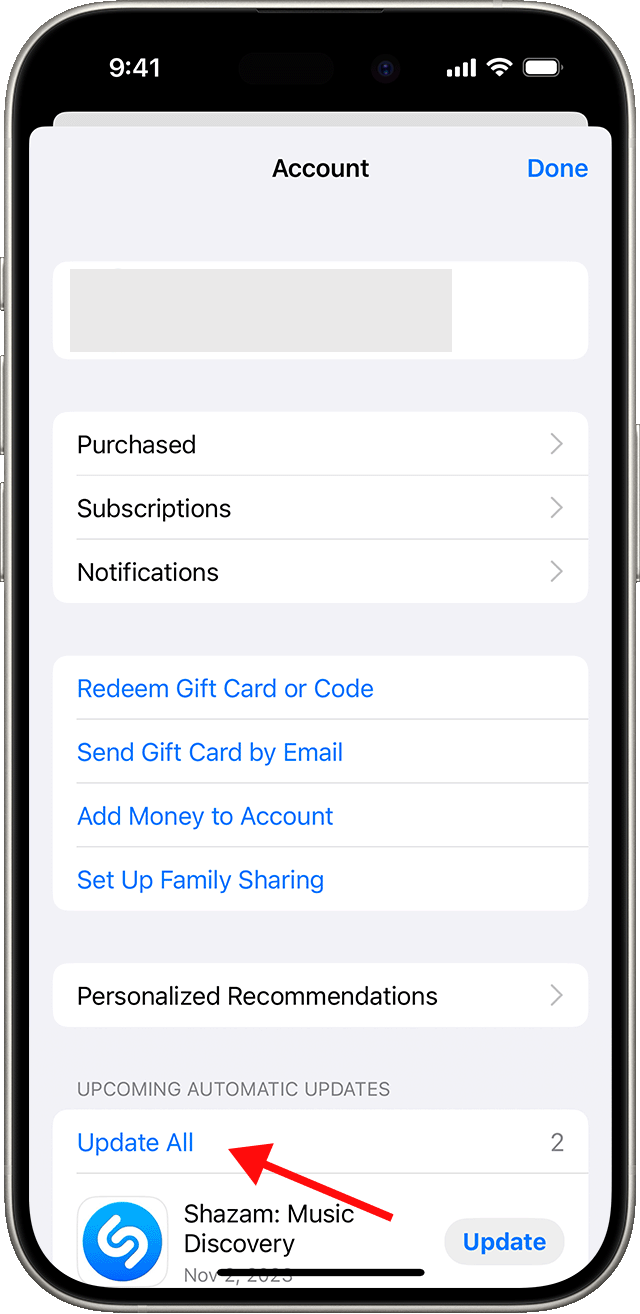
App Store-г нээгээд, боломжтой шинэчлэлтүүдийг суулгана уу. Аппликейшнуудыг шинэчилж байх нь iOS 26 дээрх нийцтэй байдал болон гүйцэтгэлийг сайжруулж чадна.
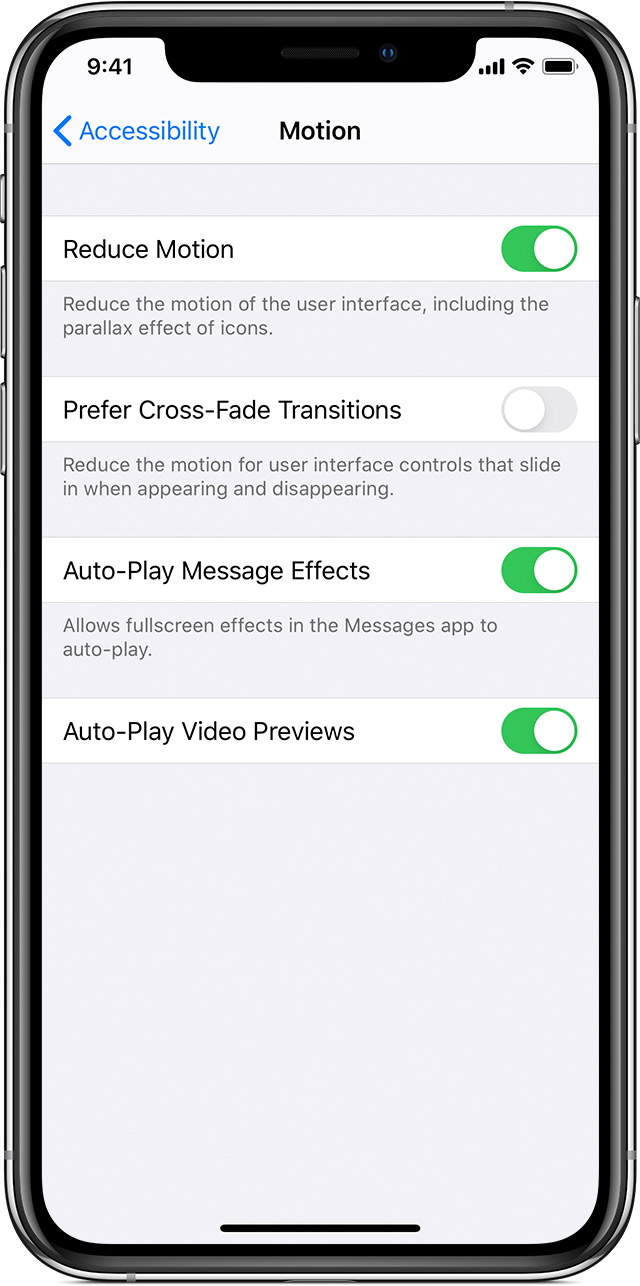
2.4 Харааны эффектийг багасгах
Хэрэв хөдөлгөөнт дүрс болон шилжилтүүд удаан санагдаж байвал идэвхжүүлнэ үү
Хөдөлгөөнийг багасгах
доор
Тохиргоо > Хандалт > Хөдөлгөөн
Харааны эффектийг багасгах нь интерфэйсийг илүү хариу үйлдэл үзүүлэх мэдрэмж төрүүлэх боломжтой.
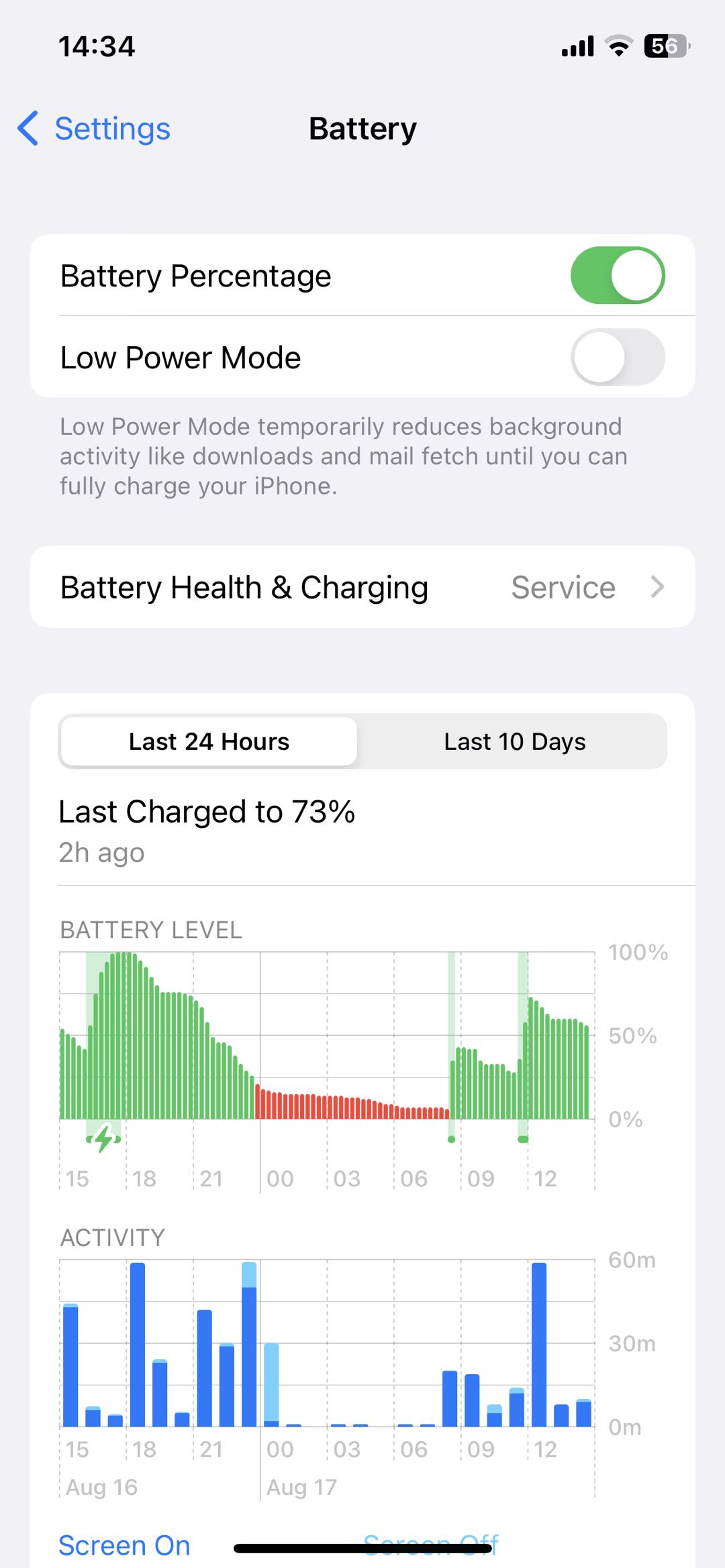
2.5 Батерейны эрүүл мэндийг шалгах
руу оч
Тохиргоо > Батерей > Батерейны эрүүл мэнд ба цэнэглэлт
мөн батерейныхаа байдлыг шалгана уу. Хэрэв батерей мэдэгдэхүйц муудсан бол засвар үйлчилгээ хийлгэхийг бодоорой.
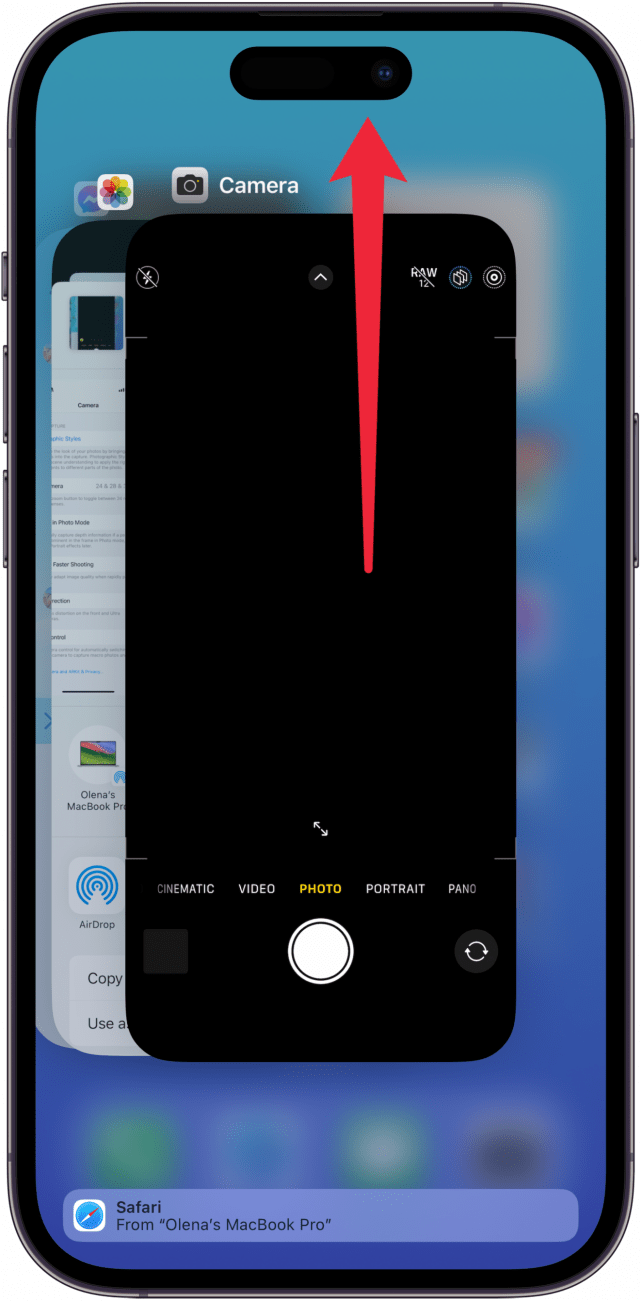
2.6 Асуудалтай аппликейшнуудыг хаах
Хэрэв нэг апп гацах эсвэл маш удаан болвол хаагаад дахин нээнэ үү. Хэрэв асуудал үргэлжилсээр байвал аппликейшнийг шинэчлэх эсвэл дахин суулгана уу.
2.7 iOS шинэчлэлт хийсний дараа хүлээх хэрэгтэй
Хэрэв та iOS 26-г саяхан суулгасан бол iPhone утсандаа дэвсгэр индексжүүлэлт болон оновчлолыг дуусгахад хэсэг хугацаа өгөөрэй. Эдгээр ажлууд дууссаны дараа гүйцэтгэл сайжирч магадгүй.
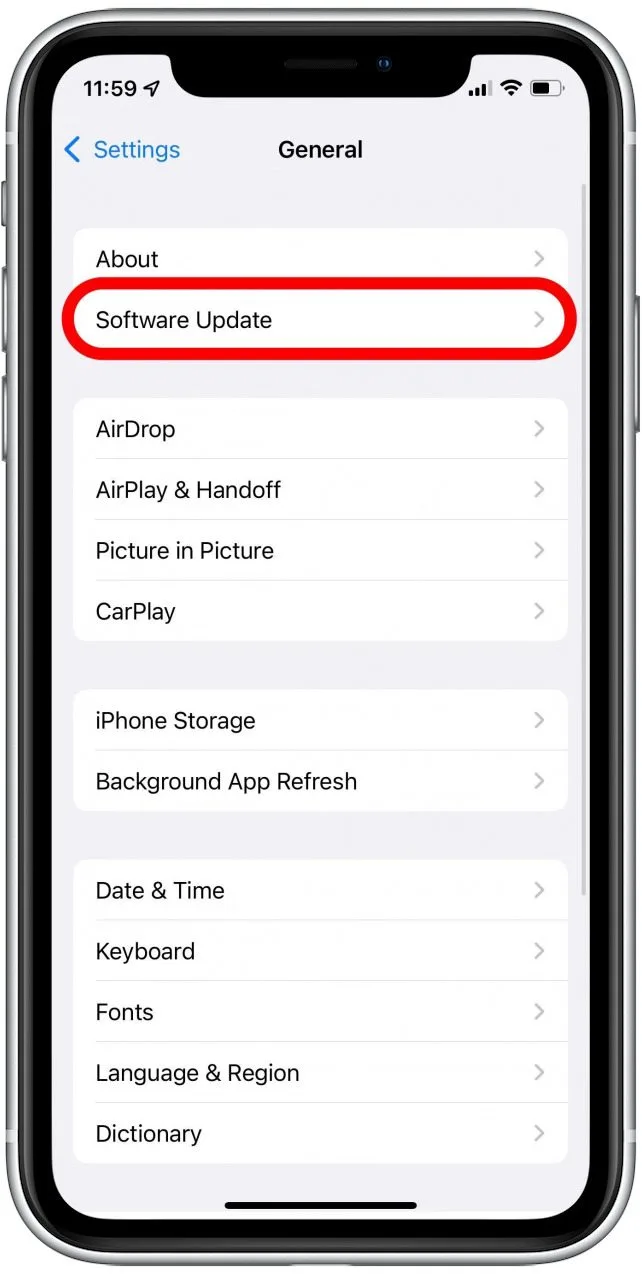
2.8 Боломжтой iOS шинэчлэлтүүдийг суулгах
руу оч
Тохиргоо > Ерөнхий > Програм хангамжийн шинэчлэл
мөн iOS-ийн шинэ хувилбар байгаа эсэхийг шалгана уу. Apple нь алдааны засвар болон гүйцэтгэлийн сайжруулалт агуулсан шинэчлэлтүүдийг гаргаж магадгүй.
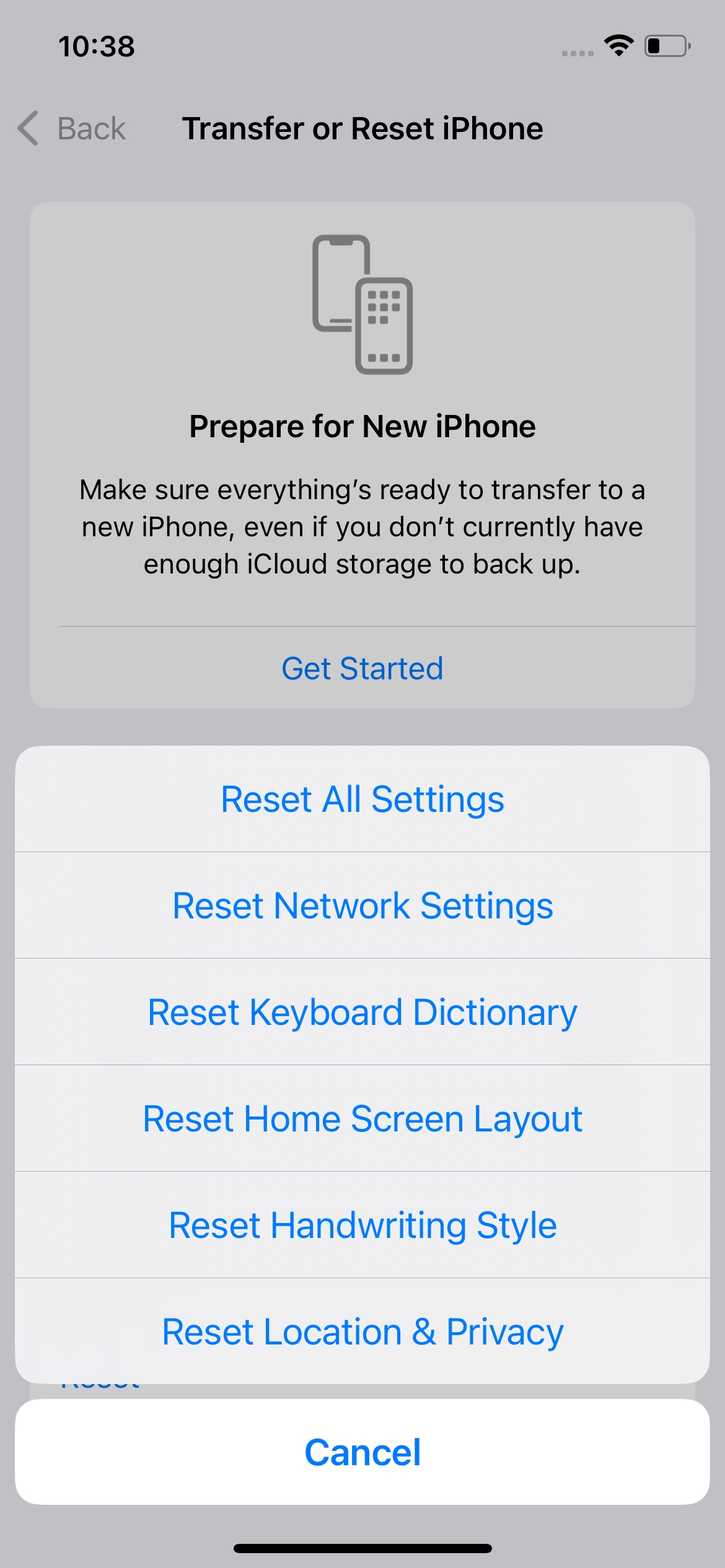
2.9 Бүх тохиргоог дахин тохируулах
Хэрэв саатал үргэлжилсээр байвал системийн тохиргоог дахин тохируулах талаар бодож үзээрэй
Тохиргоо > Ерөнхий > iPhone шилжүүлэх эсвэл дахин тохируулах > Дахин тохируулах > Бүх тохиргоог дахин тохируулах
Энэ нь хувийн контентыг ердийн үед устгахгүйгээр тохиргоог анхдагч утга руу нь сэргээнэ.
3. Нэмэлт: AimerLab FixMate ашиглан iOS системийн асуудлуудыг засах
Хэрэв таны iPhone үндсэн шийдлүүдийг туршиж үзсэний дараа ч удаан ажилласаар байвал асуудал нь iOS системийн үндсэн алдаатай холбоотой байж болох юм. Энэ тохиолдолд, AimerLab FixMate iPhone болон iPad-ын системийн янз бүрийн асуудлыг засах зориулалттай ширээний шийдлийг санал болгодог.
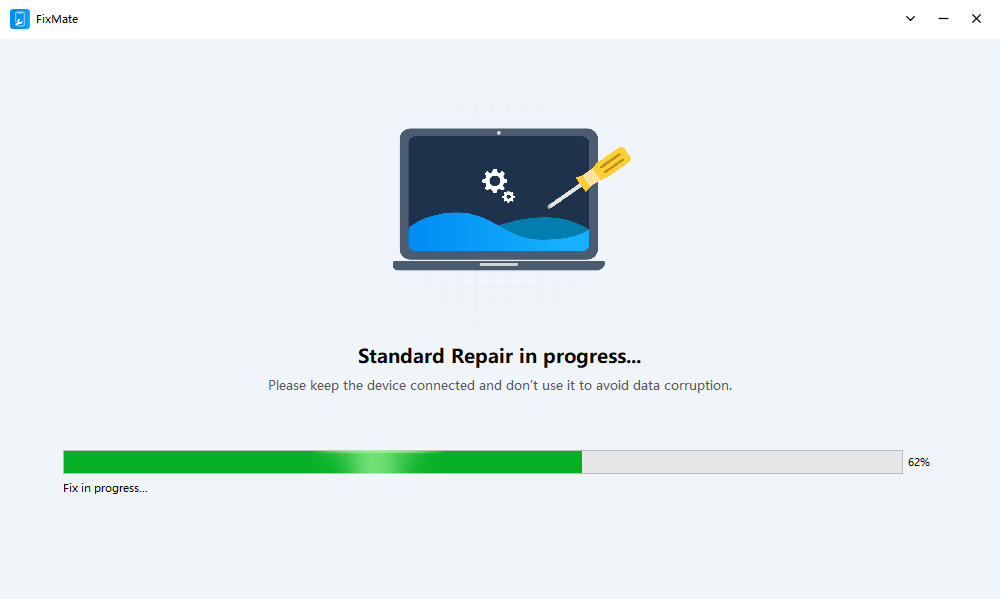
FixMate нь хэрэглэгчдэд системийн гацалт, хэвийн бус ажиллагаа, ачаалахтай холбоотой асуудлууд болон бусад програм хангамжийн алдаа зэрэг асуудлуудыг шийдвэрлэхэд туслах зорилготой юм. Үүний удирдамжтай засварлах үйл явц нь нарийн төвөгтэй гар аргаар алдааг олж засварлах процедурт найдахгүй iOS системийг засах оролдлогыг хялбар болгодог.
FixMate ашиглан iOS системийн асуудлыг хэрхэн засах вэ:
- FixMate програмыг Windows компьютер дээрээ татаж аваад суулгана уу.
- Тохирох USB кабелиар iPhone утсаа компьютерт холбож, дараа нь FixMate-г ажиллуулж, холбогдсон төхөөрөмжөө танихыг зөвшөөрнө үү.
- Таны тулгарч буй iOS асуудал дээр үндэслэн тохирох засварын сонголтыг сонгоно уу.
- iPhone утсаа шаардлагатай горимд оруулж, засварлах үйл явцыг эхлүүлэхийн тулд дэлгэцэн дээрх зааврыг дагана уу.
- Засвар дуусахыг хүлээгээд дараа нь iPhone-оо дахин асаагаад гүйцэтгэлийн асуудал шийдэгдсэн эсэхийг шалгана уу.
4. Дүгнэлт
Хэрэв iOS 26 удааширч байвал iPhone-оо дахин асаах, хадгалах зай гаргах, аппликейшнуудыг шинэчлэх, iOS-ийн хамгийн сүүлийн үеийн шинэчлэлтийг суулгах зэрэг энгийн шийдлүүд нь гүйцэтгэлийг сайжруулж магадгүй юм. Гэсэн хэдий ч хэрэв удаашрал, гацалт эсвэл системийн бусад асуудал үргэлжилсээр байвал AimerLab FixMate
iOS системийн асуудлыг засах тохиромжтой аргыг санал болгодог. Зааварчилгаатай засварлах үйл явцтай тул
FixMate
таны iPhone утсыг илүү жигд, тогтвортой болгоход тусална.
- iOS 26-г татаж авахад үүрд хугацаа шаардагдаж байгааг хэрхэн засах вэ?
- iPhone дээр байнга очдог газруудыг хэрхэн харах вэ?
- "iPhone-ийн нууц үгийг баталгаажуулах үед алдаа гарлаа" гэсэн алдааг хэрхэн засах вэ?
- "Шинэ iPhone дээр дуусгах" гацалтыг хэрхэн засах вэ?
- iOS 27 Beta хувилбарыг iPhone дээрээ хэрхэн татаж авах вэ?
- Хүлээж байхдаа гацсан iPhone файлыг хэрхэн засах вэ?
- IPhone дээр Pokemon Go-г хэрхэн хуурах вэ?
- Aimerlab MobiGo GPS-ийн байршлын спуферийн тойм
- IPhone дээрх байршлыг хэрхэн өөрчлөх вэ?
- IOS-д зориулсан GPS-ийн шилдэг 5 хуурамч байршил
- GPS-ийн байршил хайгчийн тодорхойлолт болон хуурамчаар үйлдэх санал
- Snapchat дээрх байршлаа хэрхэн өөрчлөх вэ
- IOS төхөөрөмж дээр байршлыг хэрхэн олох/хуваалцах/нуух вэ?